Edit Details What's New
Click link on one of the elements to edit data details, and the page below will appear.
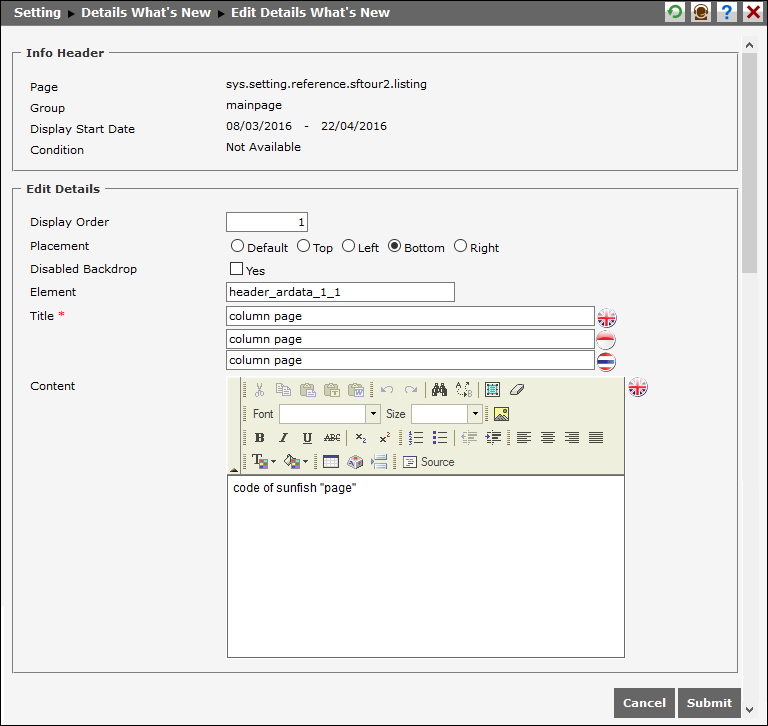
- Edit and input order number to display What's New in Display Order column. If column is empty, What's New will appear as in data input order.
- Select option on Placement to determine What's New position when it is displayed.
Default: What's New will appear in the center of the screen on that page link. The same position applies if Element column is empty.
Top: What's New will apear above Element.
Left: What's New will apear on the left of Element.
Bottom: What's New will apear below Element.
Right: What's new akan tampil on the right Element.
- Tick Disabled Backdrop column to deactive the page or backdrop the page when displaying What's New.
- Edit and input id element to Element column if developer want to display What's New from each element on that page link, e.g. "header_ardata_1_2" on page link "sys.setting.reference.sftour2.listing".
- Input title to each What's New to Title column.(*)
- Input additional information to each What's New Content column
Click  to cancel saving data and back to the main page. Click
  to save data.