Add Training Request List
To add training request list, click icon  and the following page will appear.

The data will display the training schedule of the same month. Click "Show training related my job title only" will display the existing training on the month and related to the employee jobtitle. Clik the training data on the calender will show the following page:
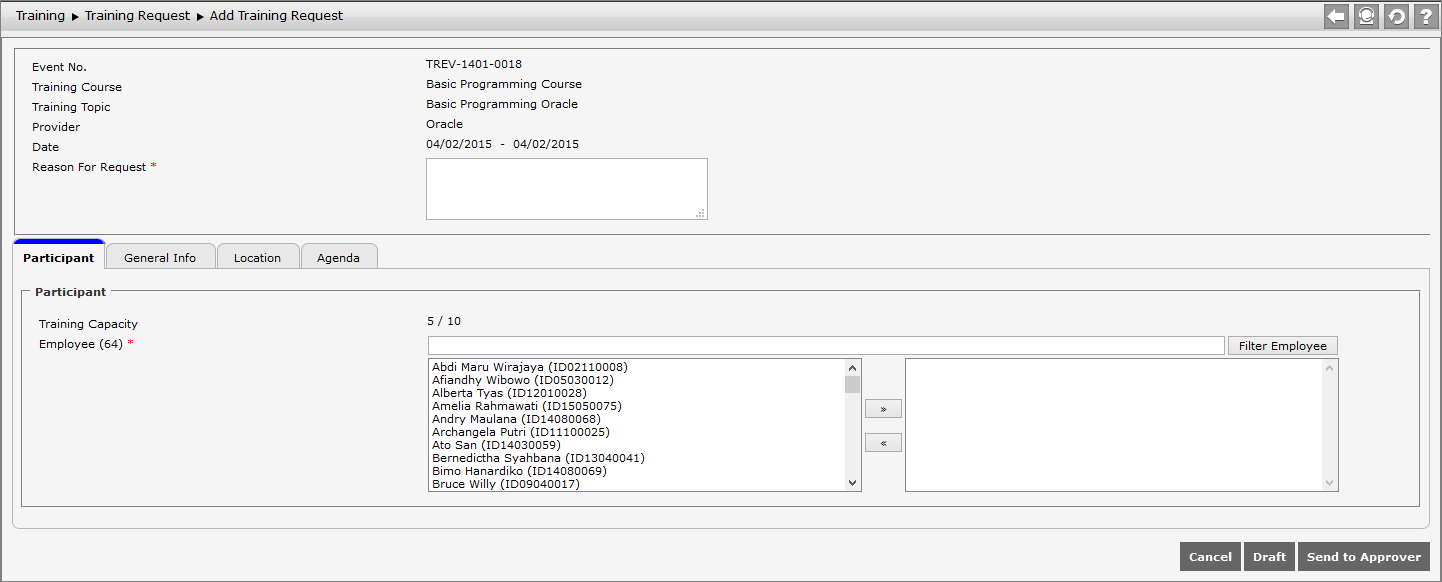
- Reason of Training Request: Fill the reason to add training request.
- Participant: Insert participant who will attend the training by clicking
 to move the list to the right-side box and click
  move the list to the left-side box.
If the data is correct, click  to send the request to the approver. Click
  to save the training request data. Click
  to cancel the saving dan go to index page. The following page displays training request for new training.
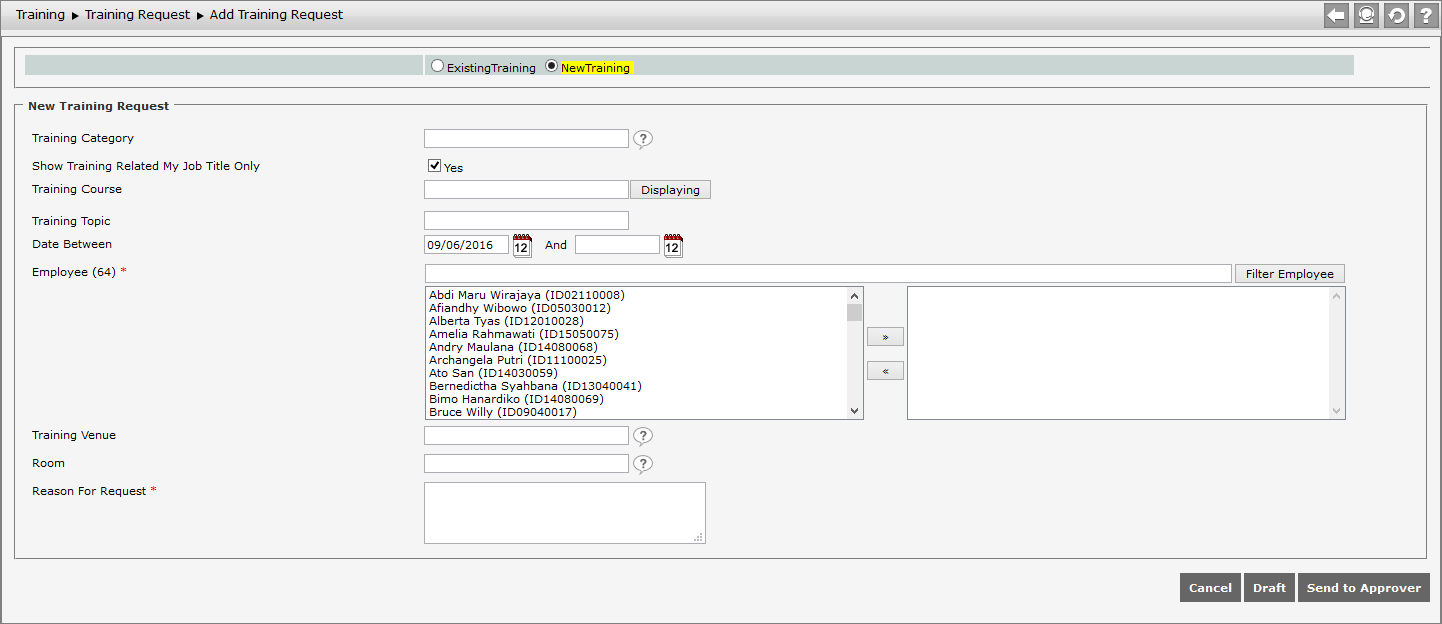
Follow these steps to add new training request.
- Training Category: Choose training category by clicking

- Show Training Related My Job Title Only: display only training related to job title of employee
- Training Course: choose training to be selected
- Training Topic: insert training topic to be conducted
- Training Date: determine the training date to be conducted
- Participant: select participant who will attend the training by clicking to move the list to the right-side box and click to move the list to the left-side box. Click
 to filter employee (see section Employee Name Filter)
 - Training Venue: determine training venue by clicking
- Room: select room by clicking .
- Reason for Training Request: insert reason to add training request
If the data is correct, click to send the request to the approver. Click to save the training request data. Click  to cancel the saving dan go to index page.