Edit Journal Setting
To edit Journal Setting, click Journal Setting code to open Edit Journal Setting page.
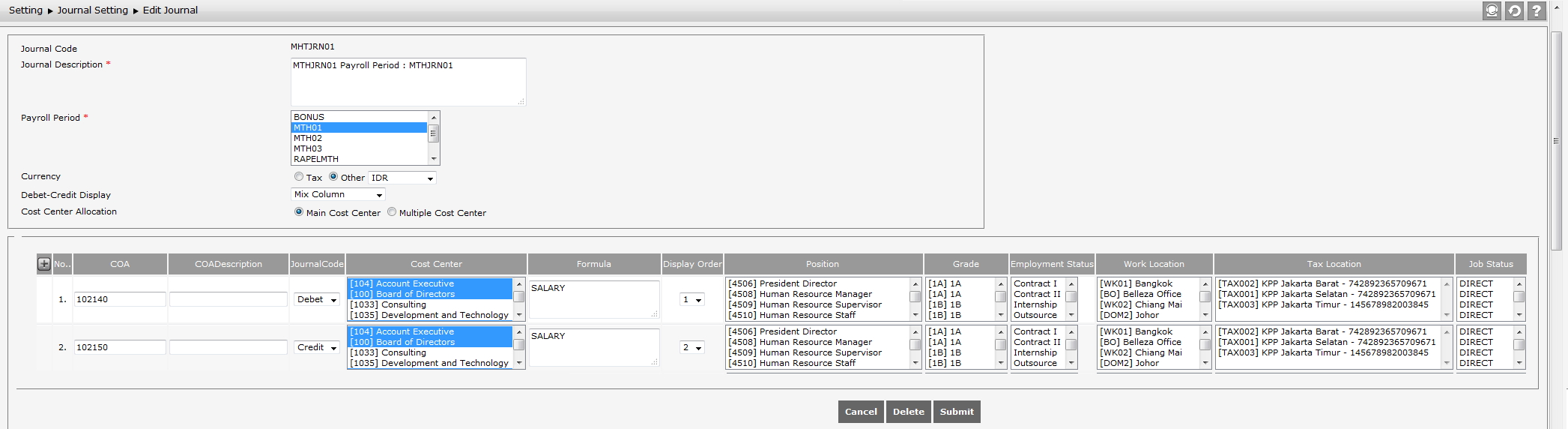
Edit the following information as needed.
- Journal Description: It is description about journal which wants to be created
- Payroll Process Period: Journal will contain payroll data of selected payroll process period
- Currency: determine currency which wants to be used. It consists of two options, which are based on ‘tax’ and ‘others’. If ‘tax’ is selected, the downloaded journal after journal process will use currency as the same as currency of the state tax. If ‘others’ is selected, the downloaded journal after journal process will use currency as the same as currency which has been selected on the configuration.
- Cost Center Allocation: Determine Cost Center Allocation. It consists of two options, which are main cost center and several cost center.
- Debet-Credit Display: it consists of two types, which are mixed and separated. It relates with the display of journal report. If mixed is selected, the credit and debit columns will be placed in a same column. If separated is selected, credit and debit columns will be placed in separated column.
- Click
 to add new row. Click
  to delete the row.
 - Chart of Account (COA). Account number of the journal: Clicking on the text field on COA column will display journal account. Click on the appropriate account option, the account number will be automatically filled on the COA column.
- COA Description: It is description or name which will be displayed on journal report which represents selected account number on COA account.
- Journal Type: It consists of two types, which are credit or debit.
- Cost Center: Grouping of salary value amount which is configured by formula based on a selected business unit.
- Formula: formula in form of variables which is contained on basic salary, salary deduction component, tax, tax allowance and THP. All variables which is allowed.
- Display Order: order of journal account which will be displayed on Payroll Journal Report.
- Position: Grouping of total salary value based on the selected position. If the position is empty, it means that there is no grouping based on position.
- Grade: Grouping of total salary value based on the selected grade. If the category is empty, it means grouping based on grade does not exist.
- Employment status: grouping of total salary value based on selected employment status. If employment status is empty, it means grouping based on employment status does not exist
- Work Location: grouping of total salary value based on selected work location. If work location is empty, it means grouping based on work location does not exist.
- Tax Location: grouping of total salary value based on selected Tax location. If Tax location is empty, it means grouping based on Tax location does not exist.
- Job Status: grouping of total salary value based on selected Job status. If Job Status is empty, it means grouping based on Job Status does not exist.
Click  to save the data. Click
  to erase the data. Click
  to cancel editing data.