Box Analysis Report
This report is used to display the result of mapping asset which is owned by a company, and which has been processed in Setting > Performance Setting > Box Analysis and it is also according to the selected reference date when creating performance period. The asset intended here is the employee working in the company. To view this report, click on Performance > Performance Report > Box Analysis Report. The system will show a page similar to the following picture.
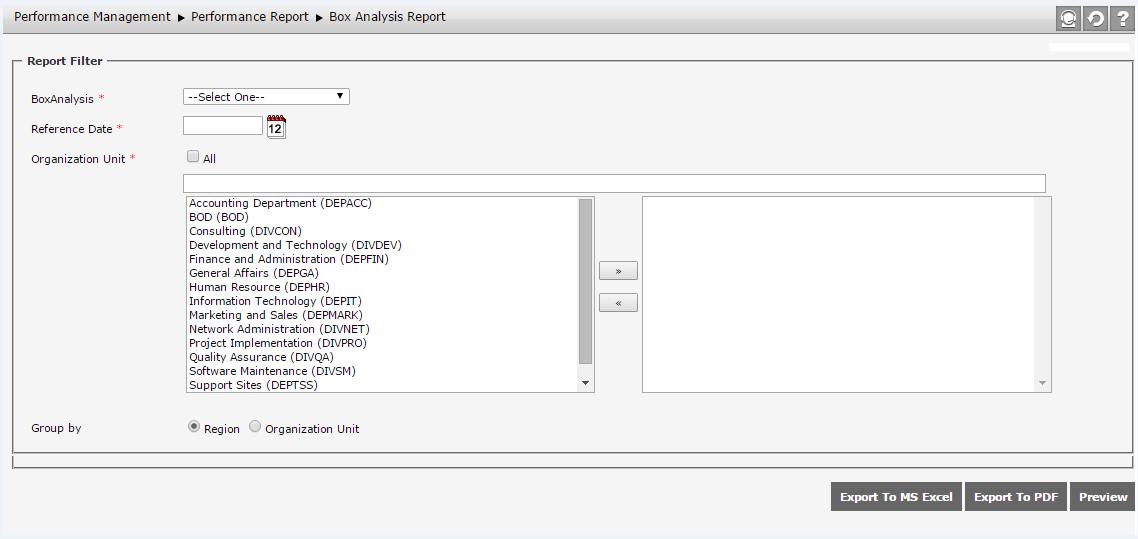
There are some selection boxes that the user must determine in advance before displaying this report:
- Box Analysis: Select the box analysis that has been created in Setting > Performance Setting > Box Analysis and the result will be displayed on Box Analysis Report.
- Reference Date: Select the reference date that will be used to display the analysis data by inputting the date manually or by clicking the calendar icon. The entered reference date must be the same with the reference date on one of performance periods configured in Setting > Performance Setting > Performance Period Setting.
- Organization Unit: Select the organization unit of which processed box analysis data will be displayed on the report. The user can select one or some organization units at once by moving the selection to the right box.
- Group By: Determine whether the report is grouped by Region or Organization Unit.
When the user has determined the data criteria, the user only needs to click  . Then, the display of box analysis report will be displayed as follow.

The user can save the report in Microsoft Excel format by clicking  or click
  to export the report to PDF file.