Edit Performance Monitoring
This page will appear when user clicks the link of employee name on Performance Monitoring page.
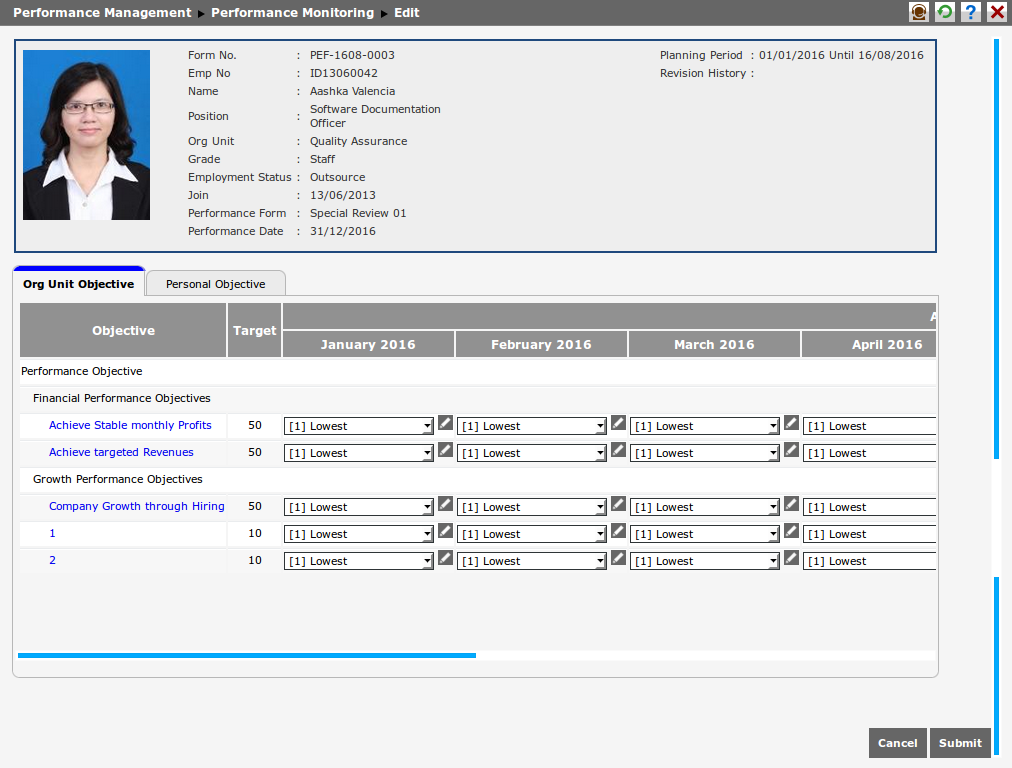
See the following explanation of information on this page:
- Form No.: It is the form number of Performance Planning which is about to be monitored.
- Emp No.: It is thenumber of employee who is about to be monitored.
- Name: It is the name of employee who is about to be monitored.
- Position: It is the position of employee who is about to be monitored.
- Org. Unit: It is the organization unit of employee who is about to be monitored.
- Grade: It is the grade of employee who is about to be monitored.
- Employment Status: It is the employment status of employee who is about to be monitored.
- Join: It is the date of employee joining the company.
- Performance Form: It is the name of employee performance form which has been recorded in Performance Monitoring, in accordance with the appraised in Performance Planning form menu.
- Performance Date: It is the target start date of performance form arrangement, that is set in Performance Period.
- Planning Period: It is the start date and end date of performance monitoring in accordance with Performance Period. On the above example, monitoring is performed each month.
- Revision History: It is the revision history of performance planning. On the above example, there are two revisions that have been already made in Performance Planning.
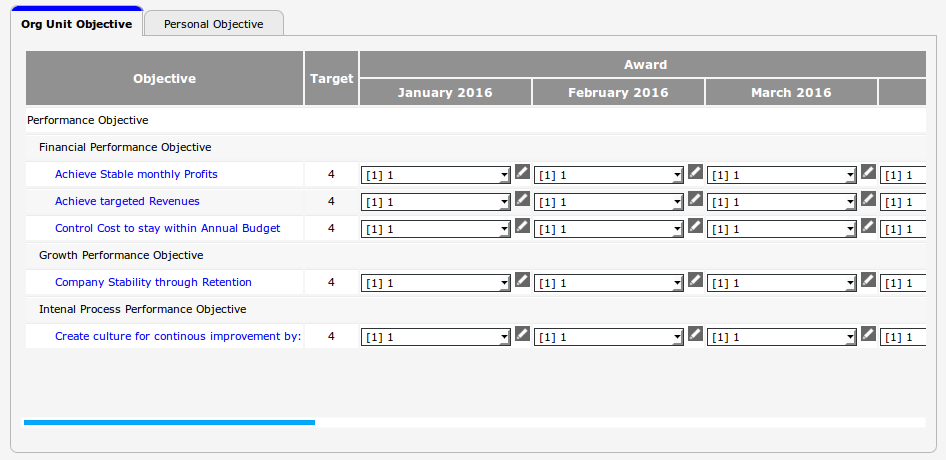
The above example explains the KPI of Organization Unit Objective, that has been filled in Performance Planning with "Fully Approved" status.
- Target: It is the target of each Personal Objective KPI that has been final.
- Achievement: It is the achievement score inputted per period of monitoring. The input type of achievement could be score type, list or range, depending on achievement type set in Performance Planning. If the score type is range, then the score that can be inputted is only decimal/integer. The achievement appraisal in this page will become the initial score in Edit Performance Form.
- Pencil Icon: Next to the achievement input, there is a pencil icon that can be clicked to show the textfield which functions to record notes of reviewer who performs the monitoring.
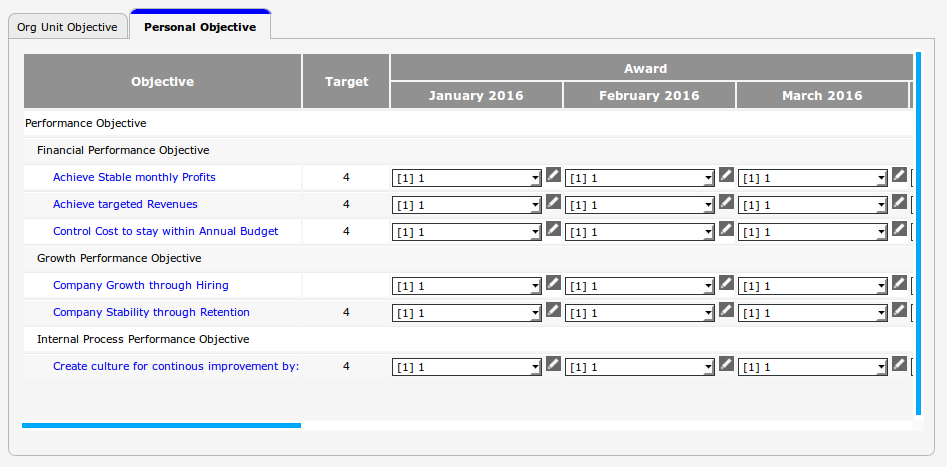
The above example explains the KPI of Personal Objective that has been filled in Performance Planning with "Fully Approved" status. The Personal Objective has the same explanation of Target and Achievement columns as Organization Unit Objective.
If user clicks the category list on the Objective column, such as  on the above example, system will show Performance Monitoring History.
Click  to submit the monitoring to performance Monitoring History page. Click
  to cancel the editing and go back to the index page of Performance Monitoring.