There are several things that user needs to ensure before adding career transition request, which are:
- There is no request which has not been approved yet.
- Only Supervisors and Manager who can request career transition for their subordinates
To add career transition request, go to Career Administration > Career Transition Request and click  , then the Add Career Transition Request page will appear as the following.
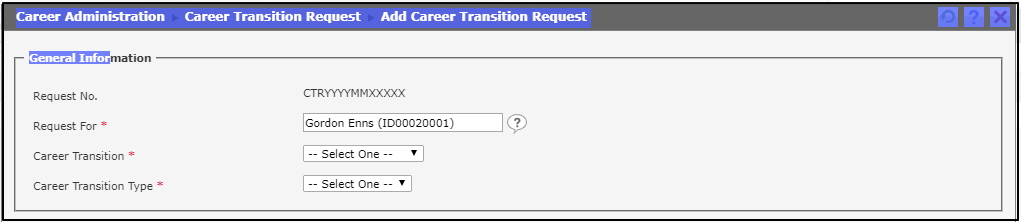
Users need to fill the General Information section by following these steps :
- Employee Name: It is the name of employee who has the career transition. Input the employee name by typing the employee name or clicking
 to choose from available options.
 - Transition No.: It is the career transition number. This number is generated automatically by system.
- Career Transition: It contains the career transition types to be selected to add the history of employee career transition. Choose one of the available career transitions.
- Career Transition Type: The options of career transition type appear once the career transition is selected. If the career transition is Movement and Branch Movement, then the options of career transition type that can be added in Setting > Career Setting > Career Transition Detail Setting will appear. But if it is Termination, then the type appeared is Termination. Choose one of the available career transition types.
Once users fill the general information, the page will appear as shown below
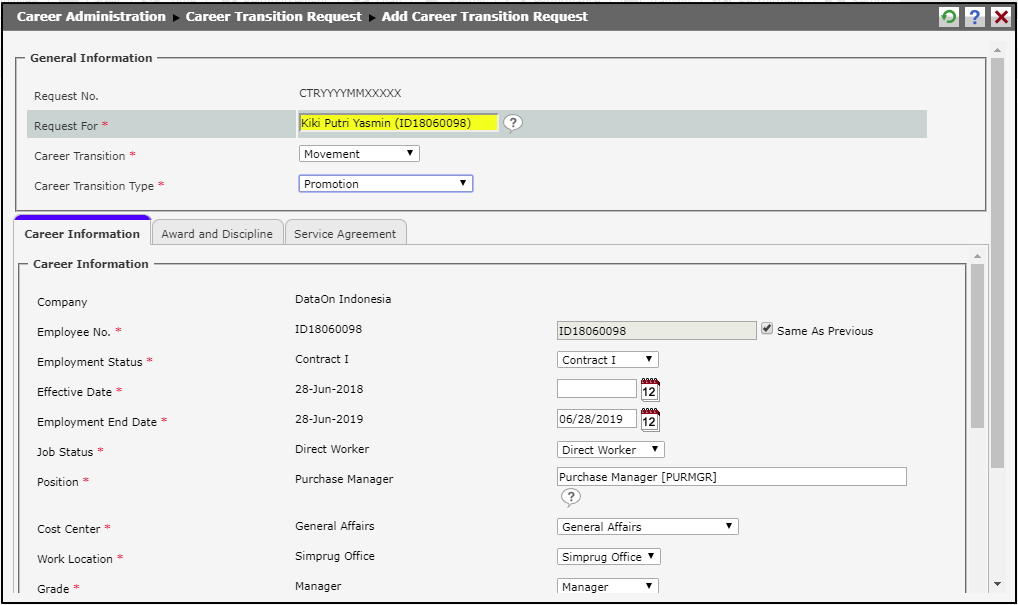
There are three tabs which should be filled to add employee career transition, Career Information,Awards and Disciplines,Service Agreement.
Career Information Tab
The Career Information tab is divided into 3 parts, General Information , Update Supervisor and Manager ,and Payroll Information . It contains the latest and new information of employee career transition according to the selected career transition and career transition type. The fields of career transition tab will vary according to the selected career transition types.
1. Career Information for Termination.
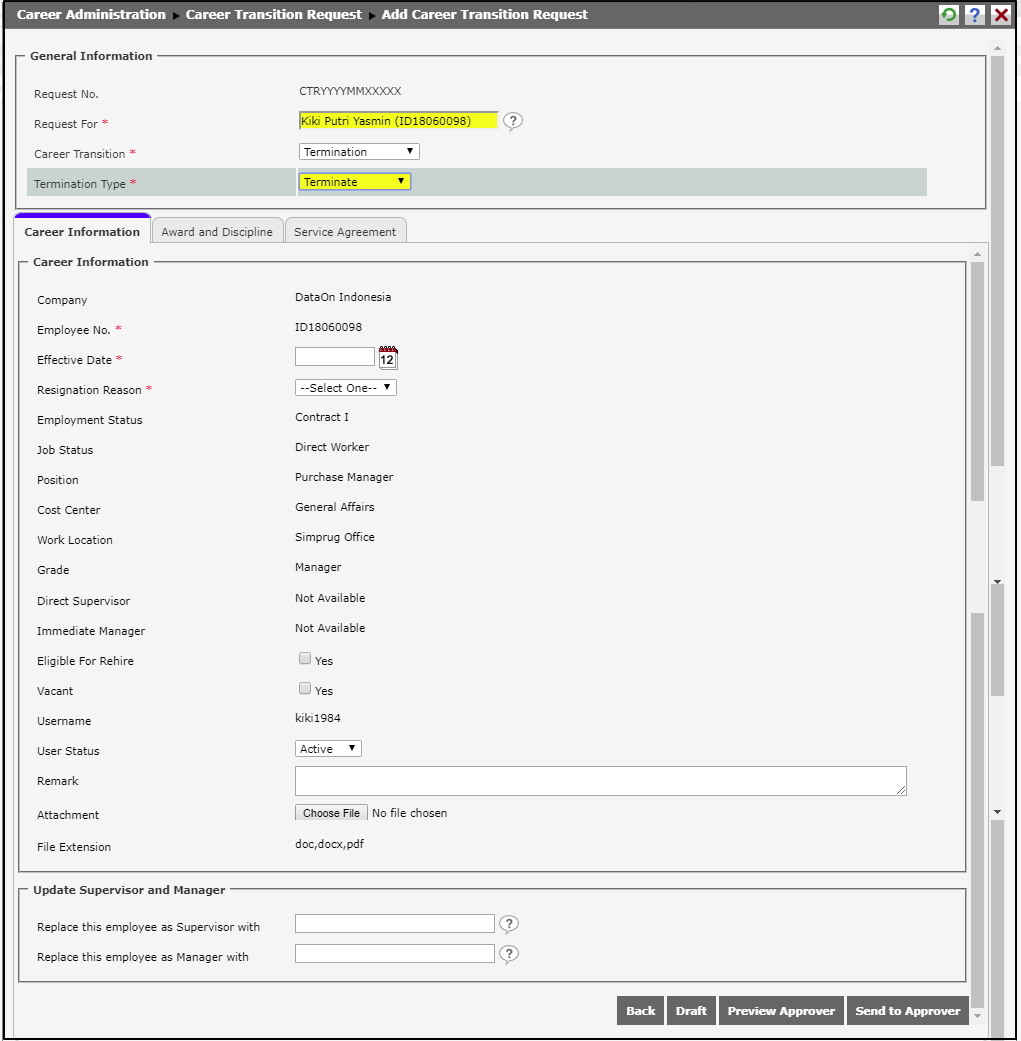
- Company: It is name of company where the employee works.
- Employee Number: It is employee number.
- Resignation Date: It is effective date of employee resignation. Select effective date by clicking the available date format or clicking
 to choose the date.
 - Resignation Reason: The options of resignation reason appear when the career transition type selected is Termination. Resignation reason can be added in Setting > Career Setting > Resignation Reason. Choose on of the available reasons.
- Employment Status: It is the employment status of resigned employee.
- Posisi: It is the position of resigned employee.
- Cost Center: It is the cost center of resigned employee.
- Work Location: It is the work location of resigned employee.
- Grade: It is the grade of resigned employee.
- Direct Supervisor: It is the supervisor name of resined employee.
- Immediate Manager: It is the manager name of resigned employee.
- Eligible for Rehire: This checkbox can be used to give information that the resigned employee can be rehired at anytime for the company. Select "Yes" if the resigned employee allows to be rehired for the company.
- Vacant: This checkbox can be used to give information that the position of resigned employee is vacant. Select "Yes" if the position is vacant.
- Remark: It is the required supporting information related to the career transition.
2. Career Information for Movement.
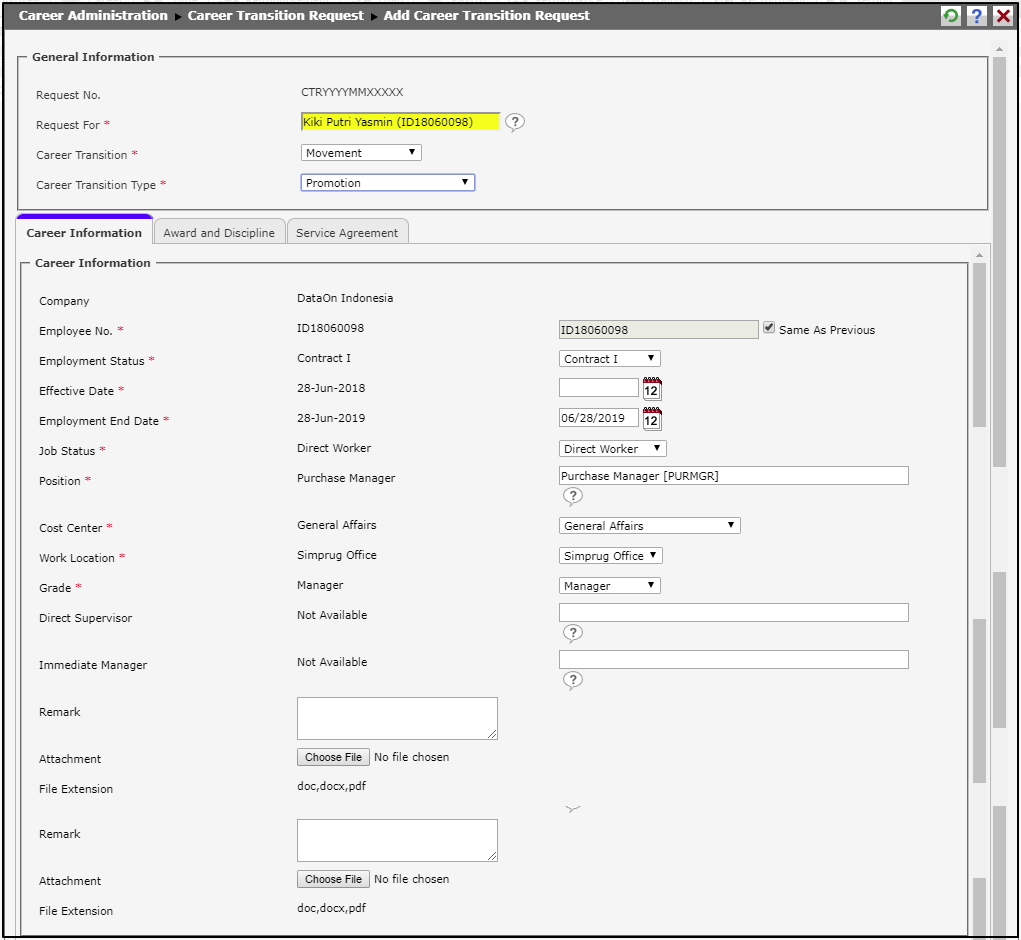
- Company: It is name of company where the employee works.
- Employee No.: It is the employee number. Select "Same As Previous" if the employee number is the same number as the number from previous career information. Select the checkbox if the employee number is different for the new career.
- Employment Status: It is the current employment status of employee. Choose one of the available employment status for the new career.
- Effective Date: It is the effective date of employee career transition. Choose the effective date by typing the date with the right format or by clicking to select the date
- Employment End Date: It is the employment end date of employee for the employment status other than Permanent and Probation. Choose the date by typing the date with the right format or by clicking to select the date. If an employee is promoted and the Effective Date is set before the Employment End Date, the Employment End Date Will remain the same. If the promotion effective date is after the Employment End Date, the system will generate new Employment End Date based on the setting in the Employment Status
- Job Status: It is the current job status of employee. Choose one of the available job status for the new career.
- Position: It is the current position of employee. Choose one of the available positions for the new career.
- Cost Center: It is the current cost center of employee. Choose one of the available cos centers for the new career.
- Work Location: It is the current work location of employee. Choose one of the available work locations for the new career.
- Grade: It is the current grade of employee. Choose one of the available grades for the new career.
- Direct Supervisor: It is the direct supervisor of employee at present. Input the supervisor name by typing the name or by clicking to select the name from available options.
- Immediate Manager: It is the current manager of employee. Input the manager name by typing the name or by clicking to sleect the name from available options.
- Remark: It is the required supporting information related to the career transition.
3.Career Information for Branch Movement
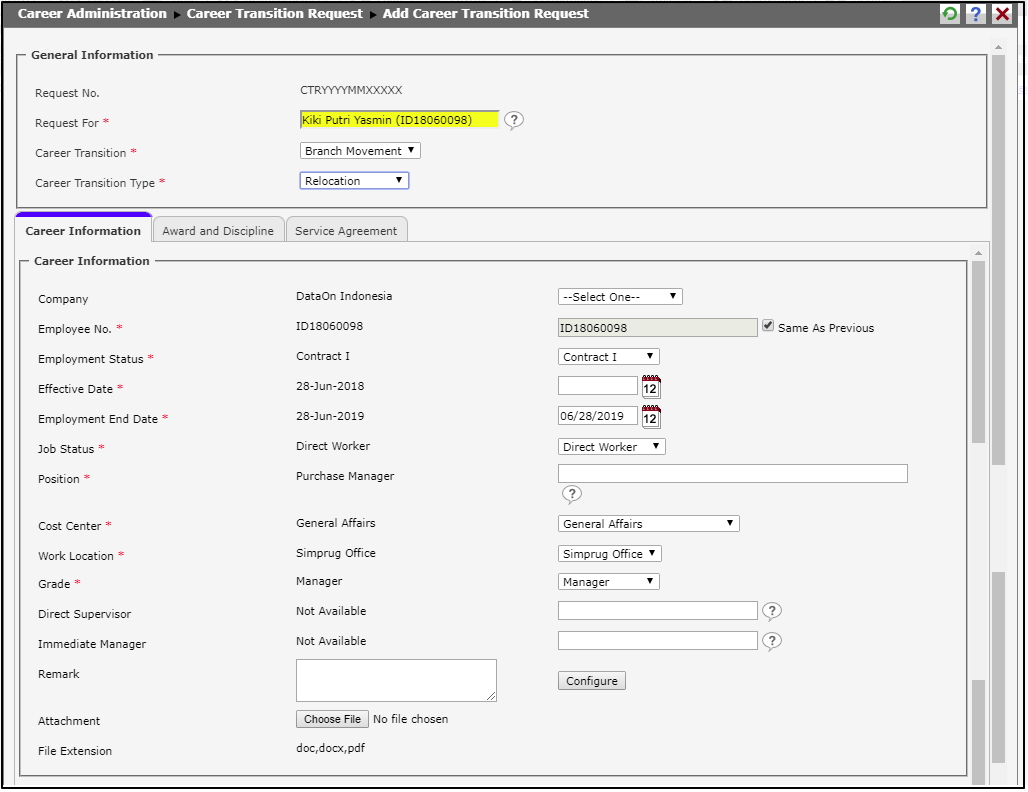
- Company: It is name of company where the employee works. Choose one of the available companies for the new branch.
- Employee No.: It is the employee number. Select "Same As Previous" if the employee number is the same number with the number from previous career information. Deselect it if the employee number is different for the new career.
- Employment Status: It is the current employment status of employee. Choose one of the available employment status for the new career.
- Effective Date: It is the effective date of employee career transition. Choose the effective date by typing the date with the right format or by clicking to select the date.
- Employment End Date: It is the employment end date of employee for the employment status other than Permanent and Probation. Choose the date by typing the date with the right format or by clicking to select the date.
- Job Status: It is the current job status of employee. Choose one of the available job status for the new career.
- Position: It is the current position of employee. Choose one of the available positions for the new career.
- Cost Center: It is the current cost center of employee. Choose one of the available cost centers for the new career.
- Work Location: It is the current work location of employee. Choose one of the available work locations for the new career.
- Grade: It is the current grade of employee. Choose one of the available grades for the new career.
- Direct Supervisor: It is the direct supervisor of employee at present . Input the supervisor name by typing the name or by clicking to select the name from availabel options.
- Immediate Manager: It is the current manager of employee. Input the manager name by typing the name or by clicking to select the name from available options.
- Remark: It is the required supporting information related to the career transition.
- Configuration: It is used to configure the employee data at the new branch. Click
 to do the configuration. The page display of Configuration will be as follow.
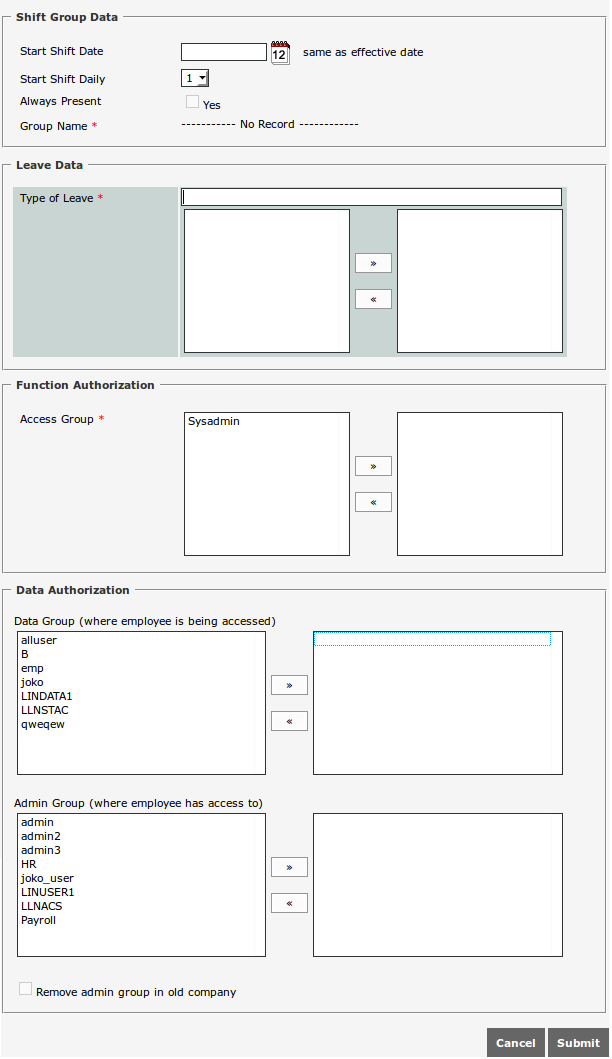
There are 3 parts of information that can be filled in the configuration of new branch:
Shift Group Data
Shift Group Data contains the information of employee shift in the company at the new branch. Follow the following directions to fill Shift Group Data:- Start Shift Date: It is the effective date of employee shift at the new branch. Choose the effective date by typing the date with the right format or by clicking to select the date.
- Start Shift Daily: Start shift daily will be automatically set according to the day of selected effective date. The configuration of start shift daily can be set in Setting > System Setting > System parameter > Company Parameter Setting > Attendance Tab.
- Always Present: This checkbox is used if the employee is considered to be always present. Select "Yes" if the employee is considered always present.
- Group Name: The options of shift group name at the new branch will appear. Choose one of the shift groups for employee.
Leave Data
Leave data contains the information of employee leave in the company at the new branch. Follow the following directions to fill the Leave Data:- Type of Leave: It contains the options of existing leave at the new branch. Choose the leave type for employee.
Function Authorization
Function Authorization contains the information of menu access authorization options for the employee at the new branch.- Access Group: The options of function authorization will appear according to the function authorization of employee who accesses the system. Choose the function authorization and move it to the right box by clicking
 .
.
Click
 to save the data of configuration. Click
  to cancel saving the data of configuration.
 - Start Shift Date: It is the effective date of employee shift at the new branch. Choose the effective date by typing the date with the right format or by clicking
4.Career Information for New Assignment
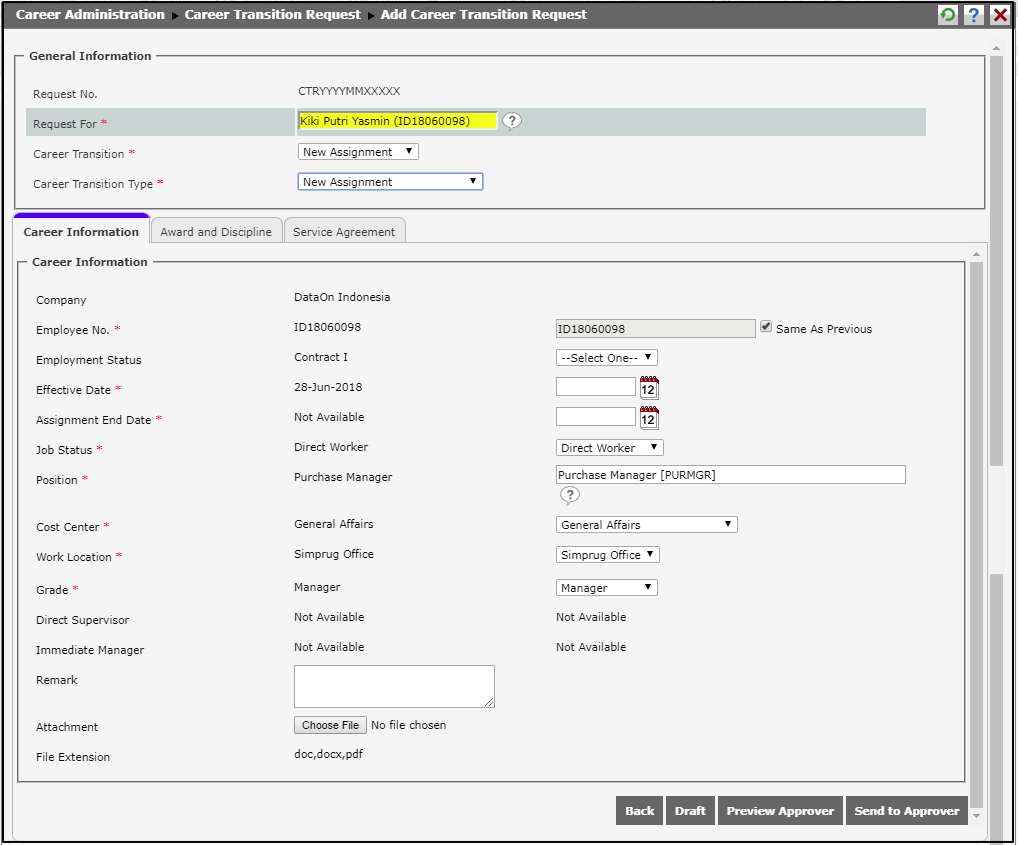
- Company: It is name of company where the employee works at the current time.
- Employee No.: It is the employee number. Select "Same As Previous" if the employee number is the same number with the number from previous career information. Deselect it if the employee number is different for the new career.
- Employment Status: It is the current employment status of employee. Choose one of the available employment status for the new career.
- Effective Date: It is the effective date of employee career transition. Choose the effective date by typing the date with the right format or by clicking to select the date.
- Employment End Date: is employee's last working day for employment status beside permanent and probation. Select date by typing the appropriate date format or by clicking . For Career Transition: New Assignment, the last working day will be dispplayed on the index and will not be able to add new assignment with the same date.
- Job Status: It is employee's current job status. Select the available job status for the new career.
- Position: It is employee's current position. Select the available position for the new career.
- Cost Center: It is employee's current cost center. Select the available cost center for the new career.
- Work Location: It is employee's current work location. Select the available work location for the new career.
- Grade: It is employee's current grade. Select the available grade for the new career.
- Supervisor: It is employee's current supervisor. Select he available supervisor for the newassignment.
- Manager: It is employee's current manager. Manager's name is not able to be selected for new assignment.
- Remark: It is the required supporting information related to the career transition.
5. Career Information for Multi-Company Assignment
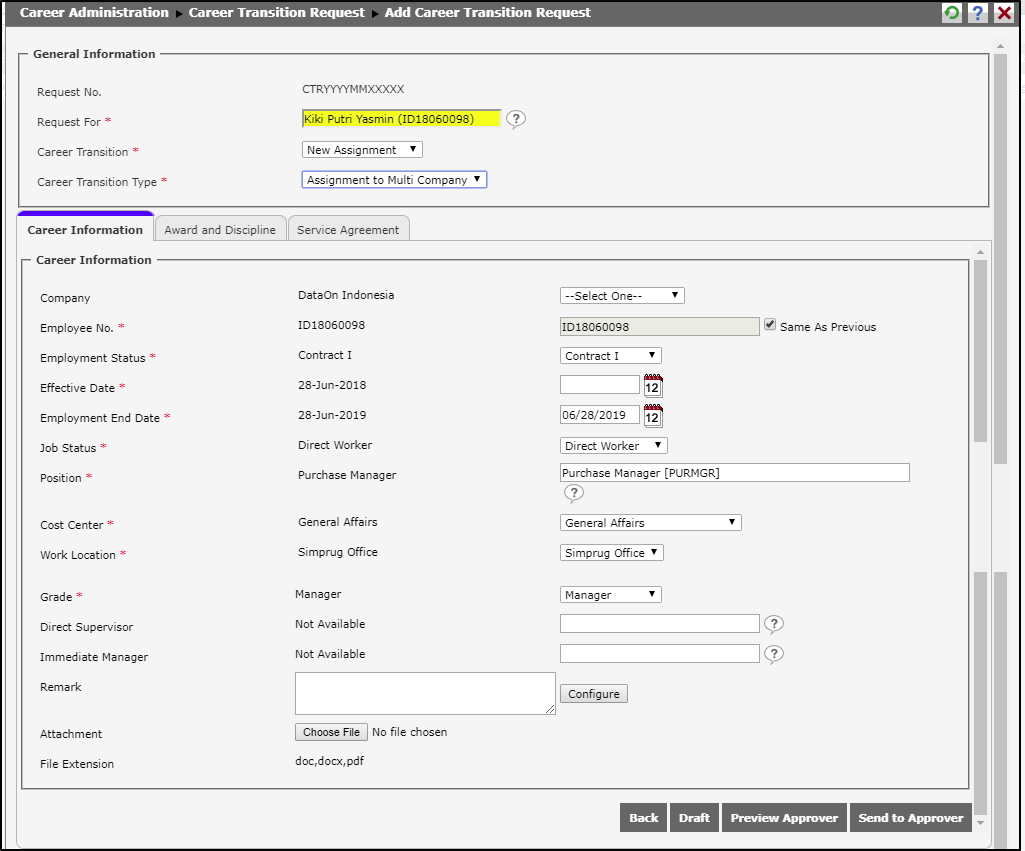
- Company: It is name of company where the employee works at the current time. Select the availablye company for the new branch.
- Employee No.: It is the employee number. Select "Same As Previous" if the employee number is the same number with the number from previous career information. Deselect it if the employee number is different for the new career.
- Employment Status: It is the current employment status of employee. Choose one of the available employment status for the new career.
- Effective Date: It is the effective date of employee career transition. Choose the effective date by typing the date with the right format or by clicking to select the date.
- Employment End Date: It is employee's last working day for employment status beside permanent and probation. Select date by typing the appropriate date format or by clicking . For Career Transition: New Assignment, the last working day will be dispplayed on the index and will not be able to add new assignment with the same date.
- Job Status: It is employee's current job status. Select the available job status for the new career.
- Position: It is employee's current position. Select the available position for the new career.
- Cost Center: It is employee's current cost center. Select the available cost center for the new career.
- Work Location: It is employee's current work location. Select the available work location for the new career.
- Grade: It is employee's current grade. Select the available grade for the new career.
- Direct Supervisor: It is employee's current supervisor. Select he available supervisor for the newassignment.
- Immediate Manager: It is employee's current manager. Manager's name is not able to be selected for the new assigment.
- Remark: It is the required supporting information related to the career transition.
6. Career information filling for the career transition of Rehire

- Company: It is employee's current company.
- Employee No.: It is employee's current number. Select the checkbox "Same as Previous" if the employeenumber is the same with number on the previous career. Deselect the checkbox if the employee has new number.
- Employment Status: It is employee's current status. employment Status is not able to be selected when selecting Career Transition: New Assignment.
- Effective Date: It is the effective date of employee career transition. Choose the effective date by typing the date using appropriate format or by clicking to select the date.
- Employment End Date: It is the employment end date of employee for the employment status besides Permanent and Probation. Choose the date by typing the date using appropriate format or by clicking to select the date. For the Career transition: New Assignment, the employment end date will be displayed on the index page and any new asignment cannot be added with the same employment end date.
- Job Status: It is the current job status of employee. Select one of the available job status for the new career.
- Position: It is the current position of employee. Select one of the available positions for the new career.
- Cost Center: It is the current cost center of employee. Select one of the available cost centers for the new career.
- Work Location: It is the current work location of employee. Select one of the available work locations for the new career.
- Grade: It is the current grade of employee. Select one of the available grades for the new career.
- Supervisor: It is the current supervisor of employee. The supervisor name is not able to be selected in Career Transition: New Assignment.
- Manager: It is the current manager of employee. The manager name is not able to be selected in Career Transition: New Assignment.
- Reset Length of Service: Select "Yes" for employment period of employe which is calculated since the effective date of rehire, or deselect it for employment period of employee which is calculated since the employee starts working.
- Remark: It is the required supporting information related to the career transition.
Change Supervisor and Manager
This part functions to define employee, who will have transition, either can replace, be a Supervisor/Manajer, or be replaced. Follow the instruction below to entry data Update Supervisor and Manager:
- 'Replace the employee as Supervisor with' and 'Set as Supervisor for', will appear for status change of Join, Movement, and Branch Movement. This function is used to determine employee who have career transition as supervisor or manager which is more than one employee, and to restore data before the employee changed as supervisor or manager.
- 'Replace this employee as Manager with' and 'Set as Manager for', will only appear for status change Movement and Termination.
Payroll Information
Payroll Information will display the salary information of employee. This section will show if the Menu Settings > System Settings > System Parameters > Company Parameter Settings, Enable Payroll Info Update in Career Transition field selected "Yes" and if the instance is Thailand's company. Display payroll information is as follows:
- Tick the checkbox 'Show Information' if you want to see detailed salary information in the form of a base salary, effective date, and payrollfield.
- Salary field content , the Effective Date, and payrollfield if there is a change.
- Tick the checkbox 'Change', so that the changes that have been incorporated can be stored in the database.
Click  to save request as draft. Click
  to send request to the approver. Click
  to cancel the request and go back to the index page.